

Slow Computer - How to Speed Up Windows Without Reinstalling
Practical guide on how to speed up a slow Windows computer. Proven methods you can apply yourself - without system reinstallation.
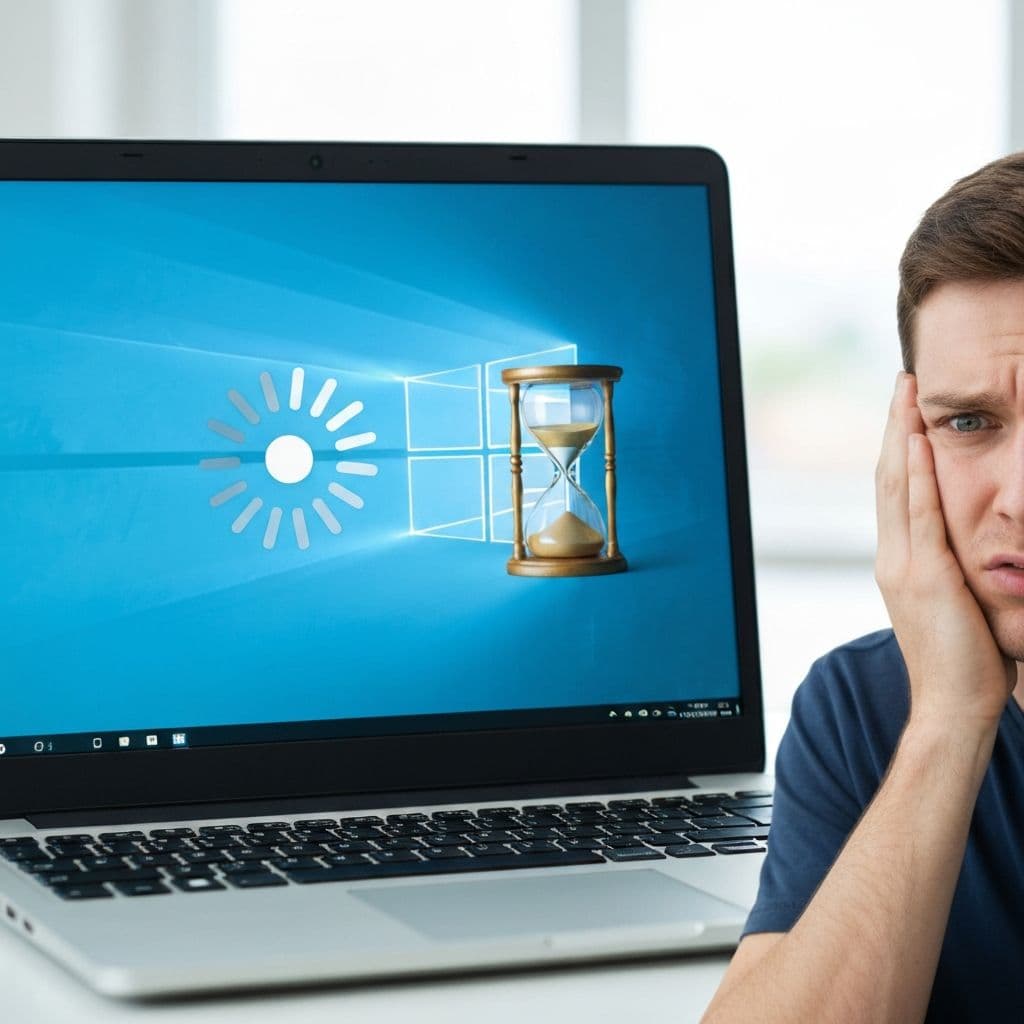
Your computer that once ran blazingly fast now takes forever to start? Programs open with delay, and the browser "thinks" with every tab? Before you decide to format or buy new hardware, try these proven methods.
Why Do Computers Slow Down Over Time?
- Too many programs launching at startup - each one wants to be "always ready"
- Full disk - Windows needs free space to function
- Lack of updates - old drivers and system
- Malware and unwanted programs - "free" programs often install extras
- Disk fragmentation (HDD) - data scattered across the drive
Step 1: Disable Unnecessary Startup Programs
This is the most common cause of slow boot times:
- Press Ctrl + Shift + Esc (Task Manager)
- Go to the "Startup" tab
- Disable programs you don't need immediately (Spotify, Discord, Steam, etc.)
Keep enabled: antivirus, drivers (Realtek, NVIDIA, AMD)
Step 2: Free Up Disk Space
Windows needs at least 10-15% free space on the system drive:
- Type "Disk Cleanup" in the search bar
- Select drive C: and click OK
- Check "Temporary files", "Recycle Bin", "Windows Update files"
- Click "Clean up system files" for deeper cleaning
Additional space:
- Uninstall unused programs (Control Panel → Programs)
- Move large files (videos, photos) to external drive
- Clear the Downloads folder
Step 3: Check What's Consuming Resources
- Open Task Manager (Ctrl + Shift + Esc)
- Check the "Processes" tab
- Sort by CPU or Memory
If you see an unknown process using lots of resources - search its name on Google. It might be malware.
Step 4: Disable Visual Effects
Windows has nice animations, but they burden older computers:
- Type "Adjust appearance" in search
- Select "Adjust for best performance"
- Or manually uncheck unnecessary effects
Step 5: Update Drivers
Outdated drivers can cause performance issues:
- Right-click Start → Device Manager
- Expand Display adapters
- Right-click → Update driver
For NVIDIA/AMD cards, it's better to download drivers from the manufacturer's website.
Step 6: Check for Malware
Even if you have antivirus, it's worth scanning additionally:
- Download Malwarebytes (free version)
- Run a full scan
- Remove detected threats
Step 7: Consider Upgrading to SSD
If you still have an HDD (traditional, mechanical), upgrading to SSD is the best investment:
- Windows startup: from 2 minutes to 15 seconds
- Opening programs: instant
- Cost: reasonable for 500GB SSD
This is the only hardware change that gives an immediate, noticeable effect.
When You Really Need to Format?
- System is infected and antivirus doesn't help
- Windows has serious errors (blue screens, crashes)
- Computer was used for years without maintenance
- You want a "clean" start
Summary
Before spending money on a new computer, try the steps above. In 80% of cases, the problem is:
- Too many startup programs
- Full disk
- Lack of SSD
Need help? If the above steps didn't help or you'd prefer to leave it to a specialist - contact us. We'll diagnose the problem and propose a solution.
Related articles
IT Audit for Your Company - Why It's the Best Investment of the Year
Your company works - until something breaks. Learn what an IT audit is, how to spot hidden technical debt, and how much a lack of control over your infrastructure really costs.
Read moreWhat to Do After Detecting a Virus or Trojan? Complete Guide 2026
Practical guide for responding to malware infection. Learn how to secure accounts, change passwords, enable MFA, and protect yourself from identity theft. Step by step.
Read moreHow to Prepare Your Company for a GDPR Audit?
Practical checklist for GDPR audit preparation. Learn what documents you need, what mistakes to avoid, and how to ensure compliance.
Read more